CAPSIM® Text Mode
User's Guide
Version 6
XCAD Corporation
Portland, Oregon
http://www.xcad.com
Copyright (c) 1989-2007 XCAD Corporation
Permission is granted to copy, distribute and/or
modify this document under the terms of the GNU Free Documentation License,
Version 1.2 or any later version published by the Free Software Foundation;
with no Invariant Sections, no Front-Cover Texts, and no Back-Cover Texts. A copy of the license is included in
the section entitled "GNU Free Documentation License".
Table of Contents
Introduction____________________________________________________________ 5
References____________________________________________________________ 6
1.0 A CAPSIM Text Mode Tutorial_________________________________________ 8
1.1 Introduction______________________________________________________ 8
1.2 Invoking CAPSIM__________________________________________________ 8
1.3 Blocks, HBlocks, and the Universe______________________________________ 9
1.4 The Standard Block Library_________________________________________ 10
1.5 Parameters_______________________________________________________ 10
1.6 Using Blocks______________________________________________________ 11
1.7 Making Connections________________________________________________ 12
1.8 Checking the Universe______________________________________________ 13
1.9 Running the Simulation_____________________________________________ 13
1.10 Changing the Parameters___________________________________________ 14
1.11 Saving the Universe_______________________________________________ 15
1.12 Creating an HBlock (Hierarchical Block)______________________________ 16
1.13 Additional Hints__________________________________________________ 20
2.0 CAPSIM Text Mode Reference_________________________________________ 22
2.1 Introduction______________________________________________________ 22
2.2 The CAPSIM Environment__________________________________________ 23
2.3 Running CAPSIM_________________________________________________ 24
2.4 Creating Blocks___________________________________________________ 25
2.5 Creating HBlocks (Hierarchical Blocks)________________________________ 25
2.6 Parameters_______________________________________________________ 26
2.8 Connecting, Disconnecting and Naming
Connections_______________________ 30
2.9 Running a Simulation_______________________________________________ 32
2.10 The Current Block________________________________________________ 33
2.11 Moving About___________________________________________________ 33
2.12 Display, Info, and Man_____________________________________________ 34
2.13 Loading and Storing_______________________________________________ 37
2.14 Removing Blocks_________________________________________________ 38
2.15 Deleting Blocks___________________________________________________ 39
2.16 Inserting Blocks__________________________________________________ 40
2.17 Replacing Blocks_________________________________________________ 41
2.18 Search Paths_____________________________________________________ 42
2.19 Aliases_________________________________________________________ 42
2.10 The Shell Command_______________________________________________ 43
2.19 History_________________________________________________________ 43
2.20 Inform__________________________________________________________ 44
3.0 Capsim TCL
Interpreter_______________________________________________ 47
3.1 Introduction_______________________________________________________ 47
3.2 TCL Script________________________________________________________ 47
3.2 Capsim TCL Command
Summary_____________________________________ 52
4.0 CAPSIM COMMAND
SUMMARY_____________________________________ 55
Appendix A____________________________________________________________ 65
Appendix B____________________________________________________________ 69
Capsim has been developed by XCAD
Corporation. The predecessor and original model of
CAPSIM was BLOSIM. BLOSIM is a signal processing
simulation program, originally developed at the University of California, Berkeley,
1985. The primary authors were D. G. Messerschmitt and D. J. Hait. Since
arrival at NCSU in November 1987, the program has been extensively debugged and
expanded. Capsim was completely
remodeled, enhanced with new commands,
and improved by XCAD Corporation as will be described shortly. The person-hours spent on this task have made
Capsim a vast improvement over the original in user convenience, capability and
reliability (see appendix A for a comparison between Capsim V5 and Blosim
v.3). In the latest version,
V6, all blocks are written in XML
and are transformed into C code using XSLT. Furthermore, the TCL interpreter
has been incorporated into Capsim with full interaction with the block diagram
topology, supporting iterative simulations. Capsim simulations can set TCL
variables that are accessible to TCL scripts. TCL scripts can set and change
block parameters and topology arguments. These are major enhancements to Capsim
and increase its power and capabilities. They also allow parameters to be expressed
in terms of mathematical expressions without limit. Also with V6 the term star is no longer used to refer to blocks. Also instead of Galaxy we use HBlock for hierarchical
blocks.
About
the Manual
This manual provides a tutorial introduction to Text
Mode Capsim and is a complete
reference manual.
The original BLOSIM tutorial [1] and reference
manual[2] including the Blockgaze manual [3] have proven to be excellent guides
in terms of getting students and faculty up to speed in using BLOSIM at NC State Univ. Therefore, XCAD has
used all three in writing this manual. Sections were deleted or added as
necessary to reflect Capsim commands and procedures. New sections have been
added describing TCL interpreter support and scripting.
Basic
CAPSIM Design
Simulation topologies are constructed from any number
of blocks. Each block can be
connected with input and/or output buffers over which data samples are passed.
A block is described by a subroutine in C-code. A hierarchical block called an HBlock
is described by a "topology file", which is a
readable text file description of connected blocks and sub-HBlocks.
By connecting blocks together as a block diagram, one
can create very large simulations. Since multiple instances of the same block
or HBlock can be used, the system is completely
hierarchical; simulations can be designed and proven in pieces. Since
block design is constrained by
certain rules, several engineers can contribute their designs to a library of
blocks and HBlocks which can be readily transported.
[1] D. J. Hait and D. G.
Messerschmitt, A BLOSIM Tutorial , UC
Berkeley
[2] D. J. Hait and D. G.
Messerschmitt, BLOSIM Reference Manual, UC Berkeley
[3] D. G. Messerschmitt, BLOCKGAZE
User's Manual (in print), UC Berkeley
Capsim Text Mode Tutorial
This tutorial introduces you to CAPSIM, a signal processing simulation program.
CAPSIM can be used to design
simulations for a large number of
signal processing and communications applications, with a minimum of programming overhead. The sections below will guide you
through the use of CAPSIM, without graphics, to create a few very simple simulations. This tutorial parallels and
enhances [1] to cover the new features and capabilities of CAPSIM.
In this tutorial, whenever you are asked to type in text at your terminal or workstation,
the text is shown in bold-faced
type. This is to prevent you from confusing it with CAPSIM's
output messages, which are
shown in a
normal font. Naturally, when you use CAPSIM,
everything will be displayed on your terminal in the same type style.
Before
you start, you should make
sure that CAPSIM has been
installed in an appropriate directory on your system . To invoke the
non-graphical CAPSIM, type
%
capsim -b
from the Shell.
The system will respond
Capsim Topology file: universe.t
followed by the prompt
Capsim[1]>
CAPSIM is now ready to accept commands. Notice that
the command number appears with the Capsim prompt. In the following we will
ignore the number although it will appear on the terminal. Capsim has a history
mechanism for recalling commands and the command number will come in
handy.
In CAPSIM, you construct simulations out of a number
of building blocks. These
building blocks, known as blocks,
correspond to small pieces of simulation programming. Each block has
inputs and/or outputs over which data samples are passed. By connecting these blocks together in
a way analogous to creating a block diagram, you can execute very large simulations. Since blocks
can be used from simulation to simulation, you can use CAPSIM to build up a
library of blocks that is suited to your own application needs. To help get you started, CAPSIM is supplied with a large library of blocks object code that is automatically loaded into memory when CAPSIM is
invoked.
You can also
combine building blocks together to
form larger building blocks, which
can in turn be used to create more advanced simulations. Building blocks that are
created out of smaller ones in this way are known as HBlocks. These
concepts will become clearer as we
go on.
The collection of blocks and HBlocks in a simulation
is collectively known as the universe. When you first invoke
CAPSIM, the universe is empty. To
create a CAPSIM simulation, you must
first bring copies of the blocks and HBlocks that you are going to use into the universe.
You can then connect these blocks and HBlocks together; that is, you
specify the way data samples are to flow
between them. The names of
the blocks and HBlocks, and the
specification of how they are interconnected, is known as a topology. A topology can be stored
in a file, so that the arrangement of the universe can be saved for later simulations. Once you have created a universe, either by creating it with
CAPSIM commands or loading its topology from a file, you can run the simulation to get the desired
results. A universe is the top level of a simulation hierarchy.
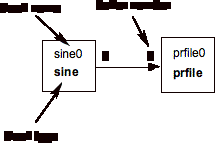
Figure 1.1
To get started, the first thing you should do is
see what blocks can be created out
of CAPSIM's standard library. To do this type
Capsim> display s
CAPSIM will display a list of modules that were loaded as part of its standard library. A block can be created by specifying the appropriate module.
Find the modules impulse and prfile in this
list. You should realize that even though these program segments are in the standard library, there is nothing special about them. They are identical in format to the code
you will be writing yourself later
on.
Before you actually use one of these blocks, let's talk a bit about
parameters. A parameter is a value that you specify
to affect the way the block
works. For example, the library module impulse is used to generate an impulse data sequence, that
is, a 1 sample followed by a
number of 0
samples. This number of
trailing 0's is not fixed anywhere
in the program for impulse, but
is specified by a parameter
to an impulse block. In fact, you can create several blocks based
on impulse, with each block having a
different parameter value. In this manner, simulation programming can be written
in a very general manner, with
parameters not set until the time they are used.
HBlocks can also take parameters. In this case, the HBlock
holds the parameter values so
that the blocks which make up the HBlock can use them. A special parameter type called arg is used by
the block to tell the HBlock
which parameter the block needs.
For example, if our impulse block
above has a parameter of arg 3,
it means that the number of 0 samples is
equal to the value of the
third parameter to the HBlock in
which impulse is contained. Just before the simulation is executed, the value of this third
parameter will be copied to impulse.
The programming for the block specifies how many
parameters the block expects there to be, what their types are
(floating-point, integer, etc),
and how they are to be used. Also the prompt for the parameter is
specified in the block code by the block programmer. Impulse blocks take only one parameter of type integer, and
use this parameter to send out the proper number of 0 samples. Note that if the number of parameters
specified or the type of parameters specified are incorrect CAPSIM will not
generate an error message until the simulation is run.
Now you are
ready to create a block.
Capsim> block impulse0 impulse
This block requires parameters. To enter the parameters
for a block make sure that the block is the Current Block and then type:
Capsim> chp
CAPSIM will respond by prompting you
for all the parameters.
Enter 1 new parameter(s):
0: Number of generated samples:
param
int 128 ?==> 10
Impulse0
is the name of the block you are
creating, while impulse is the
library module which contains its programming.
Blocks may have a name composed of any alphanumeric string of reasonable length, as long as no other blocks or HBlocks in this universe have the same name. One
could also use the command block source impulse, or block
impulse. In the first case the
block's name is source. In the
second case, Capsim automatically assigns a name impulse0. That is, it appends a 0 to the name of the block to
create a new name. If we issue another block impulse command, the new block's name will be impulse1 and so on.
CAPSIM keeps track of the most recently
created block, and displays it after appropriate commands. The Current Block is used by some of the other CAPSIM commands, as we shall see later.
Current
Block: block impulse0 impulse (lib)
In a likewise
manner, create the block prfile0. Use the default parameter for prfile, stdout:
Capsim> block prfile0 prfile
Capsim> chp
Enter 2 new parameter(s):
0: Name of output file::
param
file stdout ?==>Hit a
return
param file stdout
1: Print output control (0/Off, 1/On)
param
int 1 ? ==>Hit a return
param int 1
Here,
rather than specifying a value for the parameter of prfile, you
have told prfile to use its
internal default value for the
first parameter. Prfile is
a block that takes data samples from
its inputs and places them in the file specified by the first
parameter. The default value for this
first parameter is the standard
output. Default parameter values
are specified by the block's programmer, and are included as a convenience to the
user. Hit return if the default is O.K.
Now you have a block that will generate data samples,
and another block which will
consume data samples. To inform CAPSIM how the blocks will relate to one and
other you must tell CAPSIM how the blocks are to be connected. To connect the output of impulse0 to the input of prfile0,
type
Capsim> connect
impulse0 prfile0 data
In this command, you are telling CAPSIM to connect the first output of impulse0 (output number
0) to the first input of prfile0 (input number 0) and to name this connection data. The naming of the connection (data in this example) is optional. Each block can have a large number of inputs and
outputs (the exact number is implementation dependent).
CAPSIM will allow you to
connect any block's output to any
block's input, as long as
both blocks exist and the desired input or output is not already connected. Errors
are not flagged until the simulation is run. The number of connections that a
block has, and how they are used,
is specified by the block's programmer. Impulse
(as well as impulse0) is
designed to put output samples on one
output connection. If you connect anything to its inputs, or connect its
outputs to more than one other block, you will get an error. CAPSIM will not give you this error,
however, until you attempt to run the simulation. It will then
appear as a user error code. We will
talk about this later.
Now
you have a
universe consisting of two blocks connected together. To see if CAPSIM's view of the universe agrees with your own, type
Capsim> display a
CAPSIM will print every block or HBlock in the
universe, and all the connections between them. The
parameters for each block or HBlock
are printed before the
block or HBlock itself; this corresponds exactly to the way that parameters
are first placed on the
Parameter Stack, and then transferred to the next block or HBlock created. Here
is a what is displayed after entering the display a command.
Capsim-> display a
*******************************************************
parent HBlock UNIVERSE
arg -1 (none)
param int 10
block impulse0 impulse
param file stdout "Name of output file"
param int 1
"Print output control (0/Off, 1/On)"
block prfile0 prfile
connect impulse0 0 prfile0 0 data
*******************************************************
Current
Block: impulse0 (block: impulse)
Now you can see if your
simulation will work correctly. To
run, type
Capsim> run
If you did everything right, the impulse0 block should pass data samples on to the prfile0 block, which then
displays them on the standard output:
Output from Prfile 'prfile0'
data
1.000000
0.000000
0.000000
0.000000
0.000000
0.000000
0.000000
0.000000
0.000000
0.000000
0.000000
Note that, as expected, there are 10 “0” samples after the 1.
Suppose that once you have created a block or HBlock,
you wish to change its
parameters. You can do this with the chp command.
This command will cause CAPSIM to prompt the user for the parameters of
the Current Block. For example,
let us say that you want the impulse0 block to produce 20 zero's after the 1, rather than 10. First, you must make impulse0 the
Current Block. The forward,
back and to commands
allow you to move around within the universe by
changing the Current Block.
Capsim>
to impulse0
Now that
impulse0 is the
Current Block, we can go
ahead and change its parameter
value.
Capsim>
chp
You
can verify the change you just
made by typing display a, which shows the contents of the entire universe. If
your universe is very large it is often more convenient to use the info command, which tells you about the Current Block
only:
Capsim> info
Parent:
UNIVERSE
Name: (impulse0)
Type:
BLOCK
File:
impulse.s (library)
Status:
Modified library
Parameters:
0: Number of generated samples (int) 20
Inputs:
(None)
Outputs:
0: prfile0 (prfile) 0 data
Try to
run again:
Capsim> run
Now the impulse sequence should contain 20 zero samples.
To save the universe that you have created, use the store command:
Capsim> store
Since you did not specify a file name, CAPSIM will store this
universe in the default
topology file, which is
"universe.t".
You will now be able to run
this simulation at a later time without having to rebuild
the universe, simply by
loading "universe.t".
To save the universe that you have created under any
name, use:
Capsim> store topology_name
where topology_name is the name of the topology that is created to store
the information.( a post-fix .t will be added to the file name by CAPSIM).
Now that you have a familiarity with the basic
commands of CAPSIM, you are ready
to build more advanced simulations. We mentioned before that blocks can be combined to form HBlocks, which can
then be connected
in the same way that blocks
are to form a universe. Specifying
the topology of an HBlock is identical to specifying the topology of a
universe, with one exception: since an HBlock will be connected to other blocks or HBlocks, you must
specify what the inputs and outputs of an HBlock are. In fact, a universe is just an HBlock with no outputs or inputs.
Armed with this
information, let us create a simple HBlock: a one-pole IIR filter. To specify the
topology for this HBlock, we will need blocks that add, multiply, and delay samples.
Also, since in CAPSIM connections can only be made between two blocks or HBlocks, we will need a block
that implements the fork
operation; that is, a block that takes data samples from one block and sends
copies of them to two or more
other blocks. This block is
called a node in CAPSIM. By using
the display s command to look at
the library, we see that the
blocks add, delay, gain,
and node are the blocks we are looking for.

Figure 1.2
First,
let's clear out the universe so we can start from scratch:
Capsim> new
The universe is now empty. Be very
careful when you use this command, as there is no turning back once you have destroyed the universe. In this
example we will use the alternate method of pre-specifying the parameters. Now specify what
blocks you will need, by
issuing the appropriate commands ( notice that we let Capsim automatically
assign names to the blocks):
Capsim> arg 0 float 0.9 "Filter Pole"
Capsim> block
add
Capsim> block delay
Capsim> block node
Capsim> block
gain0 gain
Capsim>chp
Enter 1 new parameters:
0:Gain factor
param float 1
?==> arg 0
Capsim>display a
*******************************************************
parent HBlock UNIVERSE (universe.t)
arg 0 float 0.9 (0.900000) "Filter Pole"
block add0 add (*)
param int 1
"Enter number of samples to delay"
block delay0 delay (*)
block node0 node (*)
(arg 0) param float 0.9 "Filter Pole"
block gain0 gain (*)
*******************************************************
In the above sequence of commands, the first command
specifies that the HBlock has one
parameter which is refered to as arg 0. Its type is floating point and its default value is 0.9. Furthermore,
when the HBlock is used as a block, the prompt Filter Pole will
appear in response to the chp
command. Of course the HBlock can
have more arguments. In this example only one is required. Rather than
specifying a floating-point value for the gain0 gain parameter, an arg parameter has been specified. As we mentioned before, this means that the actual value to be
used for the coefficient will be taken from the parameters to the HBlock you are now creating. When a copy of
this HBlock is created for a
simulation, it must be
given one parameter, of type floating point, which will specify the value of
the filter's pole. The 0 means parameter 0 that is, the
first parameter. In this way, you can use an HBlock many times, perhaps to simulate a
cascade of first-order filters, with each copy
of the HBlock using a different
coefficient value.
Now make the connections:
Capsim> connect input add0
Samples that are directed to the 0 input of this
HBlock will be directed to the
0 input of add0.
Capsim> connect add0 node0
Capsim>
connect node0 gain0
Capsim>
connect gain0 delay0
Capsim> connect delay0
add0
Capsim>
connect node0 output
Output samples for this HBlock will be taken from output 1 of node0.
The specification for a one-pole filter, with one input and one output, is now complete. You
should now store this topology, so
that we can use it later. Be sure to specify a file name,
otherwise CAPSIM will store this HBlock
in the file
"universe.t", overwriting what we put in there before.
Capsim> store
filter.t
It
may be worthwhile at this
point to show what happens when we
try to run a simulation on a universe with
inputs or outputs.
Capsim> run
<Error 42> Top level
contains input/output
connections
You are now ready to use the HBlock you have created in a simulation. In the case of the filter, you can obtain its impulse
response by connecting its input
to an impulse block and its output to a prfile block, and
running the result. First,
clear the universe again:
Capsim> new
Now,
load the universe that was created previously,
containing impulse0
and prfile0:
Capsim> load universe
The universe now contains the two blocks you need
(impulse0 and prfile0). Of
course, their connections are incorrect, but you can easily take
care of that.
First, let's use the HBlock command to create the HBlock:
Capsim> HBlock filter
This command is similar to
the block command, except that now the filter argument
represents the file where the
HBlock's topology can be found,
rather than the name of a library block. You can call this HBlock anything
you'd like, subject to the same rules that exist for blocks (i.e., no other block or HBlock in this universe
can have the same name).
Also note that Capsim will automatically assign a name filter0 to the HBlock.
Now you can change the HBlock's parameter using the chp command.
A good test value for a pole is 0.90:
Capsim> chp
Enter 1
new parameters:
0: Filter Pole
param
float 0.9 ?==>0.9
Before you can connect up the universe, you need to remove the
connection that exists between impulse0 and prfile0 (if you don't believe that this connections
exists, use the display a to
see what CAPSIM thinks). To remove it, use the disconnect command, whose syntax is identical to the connect
command:
Capsim> disconnect impulse0
prfile0
Now proceed with the necessary connections, just
as you did before:
Capsim> connect impulse0 filter0
Capsim>
connect filter0 prfile0
It would probably be a good idea at this point to do a display a to make sure everything looks
good:
Capsim> display a
Everything looks like it's ready.
Use the run command to run the simulation:
Capsim> run
If
you did everything
correctly up until now, CAPSIM
should print twenty samples of the
impulse response of the
filter. You should now
store this filter so that you can use it in future simulations (put it in "universe.t"):
Capsim> store universe
You can now leave CAPSIM by issuing
the quit command.
Capsim> quit
By now, you have all the information you need to
construct any simulation you
desire. A complete list of CAPSIM's commands is given in Chapter 3; it
includes a few commands that we have so far left out. In particular, you may find
the alias and unalias commands useful. These allow you to redefine CAPSIM's commands, so that you can save on keystrokes.
When CAPSIM stores a topology in a file, it stores it as the sequence of
commands necessary to create the specified universe.
Thus, the topology file can be printed or edited like any other text file. You
can also create universes from the editor, and use CAPSIM only to run the simulations. To do this, invoke CAPSIM with a valid topology file specified:
% capsim myuniverse.t
When invoked in this way, CAPSIM builds the universe
according to myuniverse.t,
automatically executes a run command,
and then exits. The -l option,
% capsim -l myuniverse.t
causes CAPSIM to initially load myuniverse.t and
enter into the interactive mode.
When CAPSIM
starts up, it looks for a file named .capsimrc, first in your current directory, and then in your
home directory. If this file is found, commands are
read from it and executed before CAPSIM prints the prompt. You may want to use this file to set up search paths for blocks and HBlocks with
the path command, to define aliases, or to turn off the
Current Block display.
More information about CAPSIM can be found in chapter 2.
Capsim Text Mode Reference
The following reference manual is derived from and
parallels the original UC Berkeley manual and includes more commands and a number of
enhancements. Additions and changes have been made as necessary.
In
CAPSIM, simulations are constructed out of a variety of building blocks. Each
building block, known as a block, represents a small segment of object code that executes a part of the
simulation. Blocks are linked together by specifying the
flow of data between them, in the
same way that you might wire together
individual components in an
actual system. Once the system is
built, CAPSIM can then simulate it
by executing each block independently, and transferring
data samples between them as needed.
Blocks can also
be combined into
larger, more complicated blocks. Once the structure
of these larger blocks,
which are called HBlocks, is
defined, they can be interconnected in the same way as blocks. This
approach to simulation allows you to simulate large, complicated systems without much of the overhead
associated with single-application simulation programming. Also, because of the standardized nature of each block, simulation
code written by different
programmers can be effortlessly tied together.
This reference manual gives a complete list of CAPSIM's capabilities, and thus is not intended as an introductory guide. If you are not familiar with CAPSIM, it is suggested that you read
chapter 1 prior to reading this
chapter.
As we mentioned before, a CAPSIM simulation consists
entirely of blocks and their interconnections.
A block can be a block, in
which case it refers to simulation
programming, or it can be a HBlock, which
means that the block's
function is described in terms of more primitive blocks and the interconnections between them. For example, a digital filter can be implemented as a block by writing simulation programming for it, or as an HBlock by
specifying an interconnection of
multipliers, adders, and delays, each of which is a block.
Blocks in CAPSIM always refer to a file that contains
the programming for the block. The file may be either compiled object code,
a C program in the proper format,
or BLOCKGAZE source code .
The name of this file must
be specified when the block is created.
In addition, before a block
can be executed during a simulation,
one copy of the
compiled code must be
loaded into memory. CAPSIM sets up the private data
structures that allow many
blocks to share this one copy.
Included with CAPSIM is a large standard library of
commonly used block object modules.
This library has already
been linked to the object code for CAPSIM and is automatically loaded
into memory when CAPSIM starts up.
Blocks whose object modules are part of the
standard library are known as library blocks. Since
library blocks don't actually reference files, you specify a module name rather than a file name when you create a library block.
While each block refers to a simulation program segment, every HBlock has associated with it a specification of what blocks it contains and how they are interconnected. This
specification is known in
CAPSIM as a topology, and is
stored in a topology file. As
with blocks, the topology file for an
HBlock must be specified at the
time the HBlock is created.
An HBlock
can be built out of other HBlocks as well as blocks.
In this way, we can consider every block in CAPSIM to
have a place in a hierarchy. This hierarchy can be represented
as a tree
structure, with each node
of the tree being a CAPSIM block (a block or a HBlock). If a
node is a HBlock, it has a number of child nodes, each of which corresponds to a block
that is part of that HBlock. At the leaves of the tree are the
blocks, which have no children. Thus, each block in CAPSIM has a parent HBlock, that
is, the HBlock of which it is a part.
At the very top, or root, of the tree is a node whose children are
the top-level blocks of the
simulation. This node is called the universe. It is a HBlock, because
like any other HBlock, it contains a number of blocks. Unlike any other HBlock, however, the
universe has no input or output connections. In addition, the universe
does not have to be explicitly
created by the user; it is automatically created by CAPSIM when the system starts up, and is initialized to be
empty.
CAPSIM allows you to display and edit only one HBlock
at a time, known as the current
parent HBlock. When CAPSIM starts up, the current parent HBlock is the
universe. By using the up and down
commands (see below), you can move up and down the CAPSIM hierarchy,
displaying and changing blocks at different levels independently.
Just as
each HBlock has a topology file associated with it, the universe has its
own topology file. This universe
topology file specifies which blocks
are to be included at the top level of the CAPSIM simulation, and how they are to be interconnected. The default universe topology file is named universe.t.
To start up Text Mode CAPSIM, type the
command capsim from the Shell:
%
capsim -b
If your path is not setup type ./capsim –b.
Invoked in
this way, CAPSIM works
interactively. If instead, you specify a file,
%
capsim file.t
CAPSIM will run non-interactively, by loading the
file as the universe
topology, executing a run (see
below), and exiting. Note that the
file name must end in
".t".
Other command options to CAPSIM are:
% capsim -l file.t
Load the specified topology file, and then prompt for interactive
commands.
When
CAPSIM starts up, it will
check the current directory, and
then your home directory, for a file named .capsimrc. This
file, if it exists, should contain
valid CAPSIM commands, one per line.
CAPSIM will read this file and execute the commands in it before displaying the prompt (or before loading and executing the
specified topology, if invoked non-interactively). If any command in the .capsimrc file is in error, CAPSIM will terminate
prematurely. If CAPSIM is invoked
with the -l option, the .capsimrc
commands are read before the -l
file is loaded. To leave
CAPSIM, the exit command and the quit command work
identically:
Capsim> exit
Capsim> quit
The block
command is used to create a block instance and places it in the current parent
HBlock. The first argument to this
command is always the name of the block
to be created (the name you wish to give the
block). A block may have any name
that is an alphanumeric string of
reasonable length. No two blocks in the same HBlock (or universe) may have the same name.
The second argument to block tells
CAPSIM the library name of the block.
If you need a block that does not already exist in your library you will
have to add it using precapsim (see section on precapsim).
For example,
Capsim>block source sine
will create the block called source which produces a
sinusoid.
Capsim also allows for the automatic naming of
blocks. Thus
Capsim>block sine
will produce the block named sine0. The index
attached to the block is equal to the number of instances of that block.
To
create a HBlock, use the HBlock command:
Capsim> HBlock name topfile.t
The HBlock's name is name; the same
rules apply as for blocks. Topfile.t is a
topology file (the ".t " suffix is mandatory).
The HBlock command searches for the specified
topology file in the
directories in the HBlock path search
list (see path
below). Once found, that file is
used to create the internal structure of
the new HBlock. Since new blocks
and HBlocks may be part of this
structure, the HBlock command may have to load in many other topologies or block
object code, and thus may take a
few seconds to complete.
If any errors are found in either the specified topology file or the topology file
of one of the HBlock's children, a
brief error message is printed,
with the name of the offending
file, and the line number where the error occurred. The HBlock whose topology file generated the error is cleared of all blocks. In addition, that HBlock
and all its ancestors (HBlocks
that contain it, and HBlocks that contain
an HBlock that contains it,
etc.) are given the designation
bad. This designation is printed
every time a bad HBlock is displayed (a simulation
will not run when the universe contains bad HBlocks). An HBlock can only become good again when it is rebuilt from within
CAPSIM, or when its file is fixed and it is reloaded (this usually requires leaving CAPSIM).
Capsim also allows for the automatic naming of
HBlocks. Thus
Capsim>HBlock filter.t
will produce the HBlock named filter0. The index
attached to the HBlock is equal to the number of instances of that HBlock.
A parameter is a variable argument to a block or an
HBlock that can be set from within
CAPSIM prior to running a simulation. Blocks access the values of their parameters
through special subroutine calls (these
calls are part of the programming automatically generated by the XSLT
script blockgen.xsl that
generates C code). An HBlock does
not directly use the values
of its parameters, but instead
passes the values on to the
blocks and HBlocks of which it is composed. Simply by changing the parameters values, many copies of a
single block or HBlock can be used in very different ways. For example, a ten-pole IIR filter can
have its tap values defined in terms of parameters,
so that the same filter can be used from application to application.
CAPSIM maintains a data
structure internally called
the Parameter Stack. Parameters
are set by placing the values on the Parameter Stack, and
then copying them to the
appropriate block or HBlock. After
the values are copied, the Parameter Stack is cleared. The copying is done automatically when a block or HBlock is
created, so usually you specify what the parameters are before you create the
block or HBlock. This is not necessary, however. After the block or
HBlock is created use the chp
command described below to change the blocks parameters. This is the preferred
method.
The param command places a parameter value of the specified type on the Parameter
Stack. The command must take one
of the following forms:
Capsim> param int integer
The parameter is an integer value.
Capsim> param float floating-point
The parameter
is a floating-point value.
Capsim> param array size value1 value2 ...
The parameter is an array of values. The first
number gives the size of the array and must be an integer. The rest of
the numbers list the contents of the array, which may be floating-point. An array may not
contain more than ten elements.
Capsim> param file file name
The parameter is the name of a file, which may be any UNIX file
name.
Capsim> param function function.c
The parameter is the name of a function. The function name must have a ".c" appended to
it, indicating that the function will be found in the file function.c.
Capsim> param default
The
block is to use a default value for this parameter. This default value must be set
within the block program.
Capsim> param arg n
The parameter value is to be obtained from the nth parameter of the block's parent HBlock. The value is copied just before the simulation is run.
Note: arg n must be defined using the arg command prior to being referenced by block
parameters.
To
display the contents of the Parameter Stack, type
Capsim> display p
To change the
parameters of a
block or HBlock that has already been created, use the chp command:
Capsim> chp
chp (<pindex> <pval>)
If
no arguments : User is prompted
for new values for parameters of the current block. A <return> during prompt leaves value unchanged. If "default" is entered at
prompt, the value from the block model is used. If "arg n" is entered (n is a non-negative
integer), the value of parent parameter n is used. See command "arg". If "arg -1" is entered, the current block value is
maintained, but no longer referenced to the parent.
<pindex>
is the integer index of a defined
parameter. This option allows you to rapidly access a parameter without going
through all parameters. Type info
to get a listing of the parameters.
<pval>
: A given value string is interpreted according to the previously declared
parameter type. If pval ==
"default", the value from the block model is used. If pval ==
"arg n", the value of parent parameter n is used. If pval == "arg -1", the
current block value is maintained, but no longer referenced to the parent.
This will copy the contents
of the Parameter Stack into the
parameters of the Current
Block, and clear the Parameter Stack. The user is prompted for the parameters in a
sequential manner.
Example:
Current Block: sine0 (block: sine)
Capsim[7]-> chp
Enter 5
new parameters:
0: Number of samples to generate
param
int 1000 ?==>
1: Magnitude
param
float 1 ?==>
2: Sampling Rate
param
float 8000 ?==>
3: Frequency
param
float 200 ?==>
4: Phase degrees
param
float 0 ?==>
2.7 HBlock
Arguments
The
arg command establishes a model for an HBlock parameter. In
fact it can be used to set a global parameter for the universe. For example,
the number of samples to generate and consume is the same for a several source
blocks. Instead of specifying the same number of samples for each block, the
parameter arg 0 is specified.
Using the arg command the value
and prompt for arg 0 is set. Then
if the number of samples was changed, only arg 0 is modified. Otherwise, the parameter for each block
must be changed individually.
arg <argnum> <argtype>
<argval> (<"promptString">)
<argnum> : normally, a
non-negative integer.
If negative, signals that
HBlock has no parameters.
<argtype>
int : argval is
an integer.
float : argval is a float
value.
file : argval is a file
name string.
NULL : deletes this
argument definition.
<"prompt"> : String describing
arg. It must be in quotes!
This is transcribed to the corresponding parent
HBlock block parameter.
When an HBlock is the current block, the chp command will cause the above prompt for each
parameter to appear.
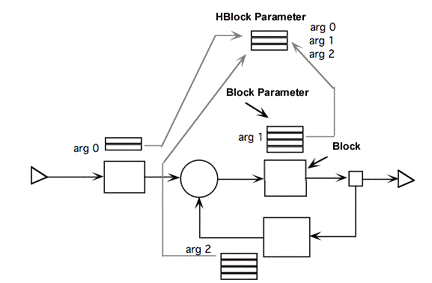
Figure 2.1 This figure shows how block parameters
relate to HBlock parameters.
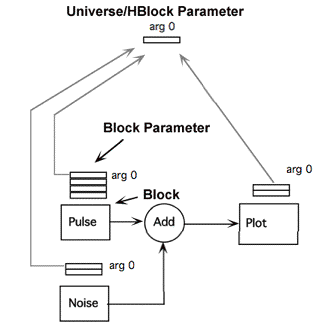
Figure 2.2 Illustration of how global parameters can be handled in Capsim.
To connect two blocks (blocks or HBlocks) together, use
the connect command:
Capsim> connect block1 outnumber block2
innumber signal_name
This causes a data connection to be
created, allowing data samples to move from the outnumber output
of block1 to the innumber
input of block2. Data
samples can only move from block1 to block2,
not in the reverse direction. The signal_name
is used by blocks such as the plot block to
automatically generate legends and also is part of the information displayed by
the info command. If
no signal name is specified CAPSIM creates one itself of the form: blockname//output_number.dat.
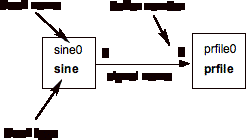
Figure 2.3 Connections.
To connect a block to the output of the block's
parent HBlock, use this form of
the connect command:
Capsim> connect block1 outnumber output galoutnumber
This will direct data samples from the outnumber output of block1
out through the galoutnumber output
of block1's parent HBlock.
Similarly,
Capsim> connect input galinnumber
block2 innumber
causes
data samples that arrive at
this HBlock's galinnumber input
to be directed to the innumber input to block2.
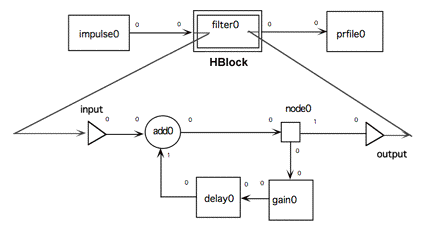
Figure 2.4 Connect input add0 and connect node output command.
Disconnect has an identical syntax,
and is used to remove a data link between two blocks:
Capsim> disconnect block1 outnumber block2
innumber
Capsim> disconnect block1 outnumber output galoutnumber
Capsim> disconnect input galinnumber block2
innumber
It is an
error to connect to or
disconnect from blocks that do not exist.
It is not necessary to specify the buffers in the
connect and disconnect commands.. Capsim will automatically assign them. For
example you can type,
Capsim>
connect source filter
In this case the next highest output buffer number of
source is connected to the next highest input buffer of filter. This is the
usual method for connections. If buffer
numbers are specified then they will be used.
The
name command is used to provide a
name for the connection.
Capsim>name <toblkname> <innum>
<signalName>
The
connection is verified as existing, "toblkname" cannot be
"output".
To run a simulation, use the run command:
Capsim> run
A
simulation will not run if any one of the following conditions is present:
(1) The
universe contains bad blocks.
(2) The
universe is empty.
(3) A
block within the universe is connected to input or output.
In
addition, a block error code will be generated if one of the following conditions is true:
(1) A
block has an incorrect number
of input or output connections.
(2) A
block has an incorrect number of parameters, or one of its parameters is of the
wrong type.
(3) A
block uses an arg parameter
that has not been properly
set in the block's parent
HBlock.
If there are no errors, the simulation will halt when no block has
data samples left on any of its input buffers. Thus, any blocks in the
universe that are sources of data
samples must eventually
stop, otherwise the simulation will continue indefinitely.
If the current parent HBlock is not empty, it will have
a Current Block associated with it. The Current Block is used by several
other CAPSIM commands. When block
or HBlock is used to create a new block, that block becomes the new Current Block.
After appropriate commands, the Current Block
is displayed after each command
is executed, in one of the following formats:
Current
Block: block blockname blockfile
Current
Block: block blockname
libblockname (lib)
Current
Block: HBlock HBlockname HBlockfile
To
change the Current Block, use the forward, back,
and to commands:
Capsim> forward
Capsim>
back
Capsim> to name
Capsim> to (partial name)
CAPSIM places the blocks that are in the current
parent HBlock on a list according to the order in which they were created. You can view this
ordering by using the display a command (see below). The forward
command will cause the block that is listed after the existing Current Block to become the new Current
Block. Likewise,the back command will cause the block that is listed before the existing
Current Block to become the
new Current Block. The to command searches in a forward direction until it finds a block
with a name that
matches the name or partial name you provide. If the search reaches the end of
the list, it starts again at the beginning until it reaches the Current Block. A message is printed if no match is found for the name pattern.
To move
through the block hierarchy, use the up and down
commands:
Capsim> up
Capsim> down
The up command
causes CAPSIM to move the
current parent HBlock up one level. The last block that was created in the new parent HBlock
becomes the Current Block. If the current parent HBlock is the universe, up will print an error message. Similarly, the down command causes the Current Block to become the new parent
HBlock. This command is in error
if the Current Block is a block.
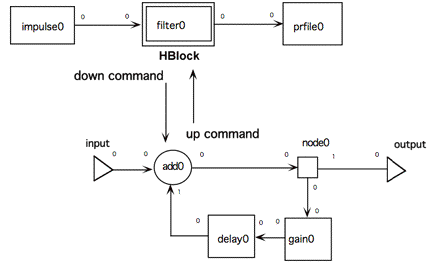
Figure 2.5 The up and down
commands.
The display command is used to print information about the current
state of the CAPSIM environment. We have already seen the display on
and display off commands, which control the
display of the Current Block, and the display p command, which displays the contents of the
Parameter Stack.
To display the complete topology of the current
parent HBlock, type:
Capsim> display a
This will print
the name of each block and HBlock, what values their
parameters are set to, and how they are interconnected. This information is displayed in terms of the
commands that would have to be given to CAPSIM to generate the existing
universe. Thus, a block named
"myblock0" with an integer parameter
set to 23 would be displayed as follows:
param int 23
block
myblock0 myblock
Example:
Capsim[6]-> display all
*******************************************************
parent HBlock zzhist (zzhist.t)
arg -1 (none)
param int 1000
"Number of samples to generate"
param float 1
"Magnitude"
param float 8000 "Sampling Rate"
param float 200 "Frequency"
param float 0
"Phase degrees"
block sine0 sine
param float -1.2 "Start"
param float 1.2 "Stop"
param int 100
"Number of bins"
param file none "File to store result (none is default)"
param int 1000
"Number of points"
block hist0 hist
connect sine0 0 hist0 0
*******************************************************
Current
Block: sine0 (block: sine)
To see what blocks are in the standard block library,
use the display s command:
Capsim> display s
This will print out the module name of each library block.
The display g command shows which HBlock topology files CAPSIM knows about:
Capsim> display g
These are topology files that have previously been
used in an HBlock command, or have been loaded by CAPSIM.
To display the name of the Current Block while the
automatic display is turned off, use display without an argument:
Capsim> display
The info command
gives more complete information about the Current Block. It lists what values
its parameters have, and what its connections are:
Capsim> info
Example:
Current Block:
sine0 (block: sine)
Capsim[5]-> info
Parent:
zzhist
Name:
sine0 (sine0)
Type:
BLOCK
File:
sine.s (library)
Parameters:
0:
Number of samples to generate
(int) 1000
1:
Magnitude (float) 1
2:
Sampling Rate (float) 8000
3:
Frequency (float) 200
4:
Phase degrees (float) 0
Inputs:
(none)
Outputs:
0: hist0 (hist) 0 sine0:0
If a detailed knowledge of exactly how
the block is operating is required then the man command is used. The man command gets the source file (".s" or
".t") for the current block.
To get a specific source file man may also be issued with an argument that is a file name.
Capism>
man [filename.s, filename.c, filename.t ]
To get on-line help type man command. For example man chp. To get a summary of the commands type man capsim.
Note:
In all cases paths must be setup to the block., HBlock, and documentation files using the path
command. It is a good idea to place the path to documentation in the .capsimrc
startup file.
The load
command causes CAPSIM to try to load a topology from a file:
Capsim> load
Capsim> load
file
If no file is specified, and the currently displayed
HBlock is the universe, CAPSIM loads the
default universe file (universe.t,
if no other is specified with the -t option). If the currently displayed HBlock is not the universe,
CAPSIM tries to load the file
associated with this HBlock.
The load
command acts recursively; that is, if any HBlocks
are part of the loaded topology, their
topologies are also loaded. During
the load, if any topology files are
in error, the name of the offending file
and the line number are printed along with the appropriate error message. HBlocks that could
not be loaded, or that
contain HBlocks that could not be loaded, are given the designation bad. A universe containing bad HBlocks
can not be run (see the HBlock command above).
To store a HBlock, use the store
command:
Capsim> store
Capsim> store file
If no file is specified, the rules are the same as
for load. Note that store is different from load in that it only stores
the topology of the currently displayed HBlock, not
the topology of any of its children.
The remove
command first disconnects
the Current Block from all blocks
to which it is connected. The
Current Block is then removed. If
the parent HBlock is not empty, another block becomes the
Current Block. Therefore, first
use the to command to go to the
desired block ( making it the Current Block) then use the command:
Capsim> remove
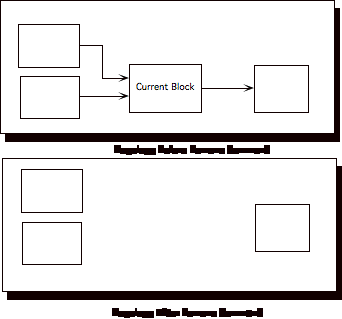
Figure 2.6
The new command
removes every block in the parent HBlock:
Capsim> new
The delete
command removes the Current
Block from the current HBlock but
not the connections. All block connections are restored "through" the
block; i.e., connections with the matching i/o numbers are remade. Unmatched
connections are removed. If the current block is a HBlock, all sub-HBlocks are
removed.
Capsim> delete
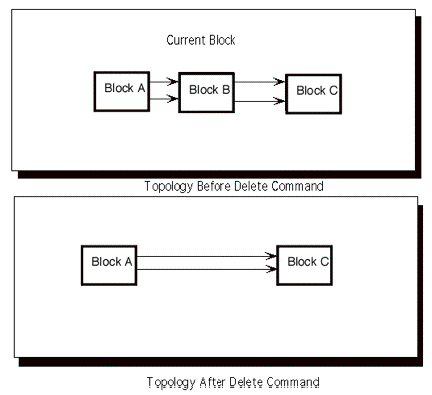
Figure 2.7
The insert
command is used to insert
the Current Block before(-)
or after (+) a block into a connection. Connections
are restored to the next available ports in the current block.
Capsim> insert <+/->
<blkname> <connum>
HBlock "input" and "output" are
valid block names.

Figure 2.8
The replace command allows the user to replace a block (Current Block) with another
block. First make the block to be replaced the current block. Then issue the
command:
Capsim>replace (<name>)
<modelname>
"modelname" must be a defined
block or HBlock type. If "name" is supplied, it must be unique. A
default name is generated if "name" is not given. All parameters are
overwritten from the model.
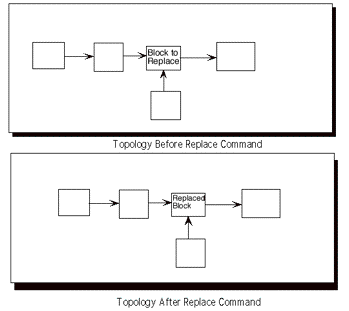
Figure 2.9
By default, CAPSIM only searches in the current
working directory for block and HBlock files. You can use the path to specify alternate paths to search in. This allows
you to keep all your
blocks in a set of
directories, and HBlocks in a different set.
Capsim> path s pathname
adds pathname to the list of directories
that are searched when CAPSIM looks for a block file, and
Capsim> path g pathname
adds pathname to the list of directories that are searched for HBlocks.
A path
to online documentation may also be specified.
Capsim> path d pathname
CAPSIM contains an alias facility. When a command is presented to CAPSIM,
each word that makes up the command is checked to see if it is an alias for a string.
If so, the string is substituted for the alias before the command is
executed. For example, if
"pint" is an alias for "param int", then
Capsim> pint 20
is equivalent to
Capsim> param int 20
To set an alias, use the alias command:
Capsim> alias alias substitution
To remove the substitution, use unalias:
Capsim> unalias alias
The alias
expansion is disabled when setting or unsetting aliases, in order to avoid
some disturbing situations.
To display what aliases are
currently active, type alias without an argument:
Capsim> alias
To execute a UNIX shell command from within capsim type sh command. For example to edit a topology type sh vi test.t. To get a directory of topologies type sh ls *.t .
It is a good idea to define a number of aliases in the .capsimrc file
such as:
alias ls sh ls
alias date sh date.
The command shell has a simple history mechanism, similar to UNIX:
"!!" means repeat last command, "!5" means repeat command
5, "!ab"means repeat the latest command beginning with characters
"ab", etc. The accessible commands can be viewed by typing
"display h". Command indices are shown with the prompt.
The inform command is to specify the Title, Author, Date, and
Description of the universe or HBlock.
To
display the title/author/date/description type:
Capsim> inform p
To
change the information use the following commands:
Capsim> inform title This is the
title
Capsim> inform author
First Name Last Name etc.
Capsim> inform date
July 20 1990
Capsim> inform descrip
Description of the topology
In the
above, the underlined character indicates a required character for each
command. This can be used to shorten the command. For example, all of the
following commands are valid:
Capsim> inform t This is the title
Capsim> inform
tit This is the title
Capsim> inform des This is a description
Capsim> inform de This is a description
The information supplied by the inform command will be
stored at the top of a universe/HBlock as follows:
#----------------------------------------------------------
#Title:
#Author:
#Date:
#Description:
#----------------------------------------------------------
Capsim TCL Interpreter
Capsim
V6 has scripting support using a
built in TCL interpreter. A major goal of adding TCL scripting is to support
iterative simulations and to support TCL command interface to numerical
packages such as LAPACK.
The
TCL commands support all of the Capsim commands with the addition of new
commands to refer to parameters by name and to change their value. Also Capsim
blocks can return values from simulations via TCL variables.
The
best way to see the power of TCL scripting is to review a TCL script for creating a table of
BER (bit error rate) versus SNR (signal to noise ratio) in the simulation of a
QPSK digital link.
#
# TCL Script that tabulates the BER for various
SNR's
# The sys-ete-ber.t topology implements a
# QPSK digital communications link
# The number of bits is different for each SNR
# The script demonstrates coupling of two different
# paramters per simulation.
# The script stores the results of each run in a
list.
# At the end of the iteration loop the results are
# tabulated.
#
# Author: Sasan
Ardalan
# June 25th, 2006
#
new
set snr { -2 0 2 5 7 }
set bits { 10000 10000 100000 100000 10000000 }
capload sys-ete-snr.t
set berResults [list {}]
foreach snrVal
$snr numbits $bits {
#
# for each value of SNR $snr and corresponding
# number of bits $bits set the parameters
# in the topology. The number of bits is a global
# parameter in arguments.
# to change the SNR we first make
the set SNR block
# the current block. We
then set the parameter
# using the Capsim TCL command parambyname
#
arg
3 int $numbits "number of
bits"
to
setsnr0
parambyname snr $snrVal
run
#
# when the simulation is run, at the end of the
# simulation the ecountfap0 block stores the BER in
# the TCL variable $ecountfap0_ber
#
puts -nonewline "$snrVal : $numbits "
puts "BER=$ecountfap0_ber"
# gather the results in a list for each simulation
lappend berResults [list $snrVal $ecountfap0_ber ]
}
#
# Create a table of BER versus SNR
#
puts [ llength $berResults ]
puts -nonewline SNR
puts -nonewline "\t"
puts
BER
foreach value $berResults {
puts -nonewline [lindex $value 0]
puts -nonewline
"\t"
puts [lindex
$value 1]
}
In
the above script the key points are that once a topology is loaded, sys-ete-snr.t
in this case, we can access any
block parameter by name. We can also access the topology arguments.
Furthermore, once a simulation is run, blocks can store their results in TCL
variables. In this case the BER is stored in the variable $ecountfap0_ber.
The
results of the simulation are:
SNR BER
-2 0.05677
0 0.023237
2 0.005626
5 0.000220
7 5.000000e-06
Another important aspect of TCL scripts is that TCL
commands including mathematical expressions can be used to set parameter values prior to running a simulation.
Finally, using TCL scripting algorithms can be
developed for optimization of designs. In addition, sensitivity studies can be
performed where the sensitivity of overall system performance to parameter variation can be analyzed.
Here is another Capsim TCL script
example. Figure 3.1 shows the topology for iirtest.t. A sine wave is generated and filtered by an IIR low
pass filter. Its rms value is calculated using the stats block. The TCL script changes the frequency
parameter in the sine block (freq), runs a simulation, and retrieves the
measured RMS value of the filter output from the stats block. The stats0 block returns the RMS value as a TCL variable stats0_rms.

Figure
3.1 iirtest Topology
#
# TCL Script that iterates a number of simulations
# The iirtest topology is a sine wave filtered by a low
pass IIR filter
# The filtered samples are processed by the
"stats" block which computes the
# RMS value.
# The script stores the results of each run in a list.
# At the end of the iteration loop the results are
tabulated.
#
# Author: Sasan Ardalan
# June 25th, 2006
#
new
capload iirtest
#turn the printer probe off
to prfile0
parambyname control 0
set freq 0
to sine0
set results [list {}]
for { set i 0}
{ $i < 10 } { incr i} {
set
freq [expr $freq+1000]
puts
$freq
parambyname freq $freq
run
puts $stats0_sigma
lappend results [list $freq $stats0_sigma]
}
puts -nonewline Freq
puts -nonewline "\t"
puts
RMS
foreach value $results {
puts -nonewline [lindex
$value 0]
puts -nonewline
"\t"
puts [lindex
$value 1]
}
The results of the simulation are:
Freq RMS
1000 0.68096101284
2000 0.690733492374
3000 0.672446846962
4000 0.152041137218
5000 0.038574591279
6000 0.027747457847
7000 0.0252503212541
8000 0.0251301862299
9000 0.0249269343913
10000 0.0243778862059
The iirtest.t topology is provided below. Note that the freq parameter that changes the frequency of the sine
wave generator block is highlighted ( the TCL command parambyname
is used to change the frequency):
arg -1 (none)
param int 128 num_of_samples "total number of samples to output"
param float 1 magnitude "Enter Magnitude"
param float 32000 fs
"Enter Sampling Rate"
param float 1000 freq "Enter Frequency"
param float 0 phase "Enter Phase"
param float 1 pace_rate "pace rate to determine how many samples to
output"
param int 128 samples_first_time "number of samples on the first call if
paced"
block sine0 sine
param file stdout file_name "Name of output file"
param int 1 control "Print output control (0/Off, 1/On)"
param int 0 bufferType "Buffer type:0= Float,1= Complex, 2=Integer"
block prfile0 prfile
param int 0 skip
"Points to skip"
param file stat.dat stat_file "File to store results"
block stats0 stats
param int 3 desType "1=Butterworth,2=Chebyshev,3=Elliptic"
param int 1 filterType "1=LowPass,2=HighPass,3=BandPass,4=BandStop"
param float 32000 fs
"Sampling Frequency, Hz"
param float 0.1 pbdb
"Enter Passband Ripple in dB's"
param float 35 sbdb
"Enter Stopband Attenuation in dB's"
param float 3400 fpb
"Passband Freq. Hz/LowPass/HighPass Only"
param float 4400 fsb
"Stopband Freq. Hz/LowPass/HighPass Only"
param float 220 fpl
"Lower Passband Freq. Hz/BandPass/BandStop Only"
param float 3400 fpu
"Upper Passband Freq. Hz/BandPass/BandStop Only"
param float 10 fsl
"Lower Stopband Freq. Hz/BandPass/BandStop Only"
param float 4400 fsu
"Upper Stopband Freq. Hz/BandPass/BandStop Only"
param file tmp name
"Filter name"
block iirfil0 iirfil
connect sine0 0 iirfil0 0
connect prfile0 0 stats0 0
connect iirfil0 0 prfile0 0
In
the following summary of TCL commands, most commands are exactly the same as the Capsim commands with the
following exceptions:
To
store a topology the TCL command is capstore instead of store.
To
load a capsim topology the TCL command is capload instead of load.
The
Capsim command info in TCL is getinfo.
TCL
Commands:
display [g or s]
block block_model,or block block_name block_model
replace block_model,or
block block_name block_model
HBlock block_model,
or HBlock block_name block_model
chp [param
number] [paramvalue]
connect blockNameSrc
[port] blockNameDest [port]
disconnect blockNameSrc
[port] blockNameDest [port]
run
new
to path_to_block
capstore [file_name]
capload file_name
arg argnum
argtype argval "argprompt"
up
down
back
forward
setCellInc integer
(number of cells allocated to increase buffer FIFO)
setMaxSeg integer
(Maximum number of cell increments, setting too high may cause memory over
flow. Too low results in buffer over flow)
path [sgd]
thePath
remove
delete
insert <-,+>
<specifiedBlockName> <i,o number>
signame name_to
inNum sigName
inform field
info
makecontig
state
getinfo
man block
parambyname name
value
Capsim Command Summary
Capsim
(Capture and Simulate) is an interactive, sampled data simulation package. The program is controlled via commands
which come either from user input or from topology (~.t) files. The command
shell has a simple history mechanism, similar to UNIX: "!!" means
repeat last command, "!5" means repeat command 5,
"!ab"means repeat the latest command beginning with characters
"ab", etc. The accessible commands can be viewed by typing
"display h". Command indices are shown with the prompt. There is also a simple aliasing utility
for the first word of a command.
See "alias" below. The commands listed below are grouped by
function. There is a documentation file for each command. To view any of these
while Capsim is active, type (e.g.) "man block".
capsim print
this documentation file
block create
a block current bloc
HBlock, create
an HBlock current block
replace change
the current block model type
store save
current HBlock into a topology file
load load
a topology file into current HBlock
connect block
buffer connection
disconnect block
buffer disconnection
inform Update
and/or display info, author, date etc.
insert insert
current block into an old connection
name give
a name to the buffer connection
remove,
remove current block from HBlock
delete, remove
current block but restore any connections
new remove
all blocks in current HBlock
quit, exit leave
capsim with/without change confirmation
param, chp
block parameter specification, change
arg
HBlock parameter-model specify
up, down, movement
between topology levels
forward, back movement
between blocks in the current HBlock
to move
to the block with name matching a string
display
status display (several options)
path create
search path(s) to various file groups
alias, unalias
define simple strings for various commands
man, sh manual
(file) reference; perform a shell command
< filename get
commands from the file filename.
inform specify
title/author/date/description of universe/HBlock
alias,
unalias : Define or undefine alias strings for commands.
alias (<shortWord> <commandString>)
: if no arguments are given, all currently defined
alias pairs are printed.
<shortWord> : A single word, which will imply
"commandString".
A subsequent use of "shortWord" on the Capsim
command line will be expanded to "commandString".
Only the latest alias of "shortWord" is kept.
<commandString>
: An arbitrary number of words.
The first word
MUST be a legitimate Capsim command word.
unalias <shortWord>
: eliminate "shortWord" as a keyword.
arg
: Establish a model for an HBlock parameter.
arg <argnum> <argtype> <argval>
(<"promptString">)
<argnum> : normally, a
non-negative integer.
If negative, signals that HBlock has no parameters.
<argtype>
int : argval is
an integer.
float : argval is a float
value.
file : argval is a file
name string.
NULL : deletes this
argument definition.
<"prompt"> : String describing
arg. It must be in quotes!
This is transcribed to the corresponding parent
HBlock block parameter.
up,
down, forward, back, to
These
commands are used to change the current block (CB).
The
current HBlock (CG) is always the parent of CB.
up : up one level, if CG is not the top
level.
CB = CG. CG = CG's parent.
down
: down one level, if CB is a HBlock.
CG = CB. CB = CB's child.
forward
: CB = CB's forward sibling. This will wrap around.
back
: CB = CB's backward sibling.
This will wrap around.
to <arg>: movement via pattern match to block
name. Compound
arguments
are allowed. Matching proceeds
until failure.
Partial
patterns will work.
<args>
* : move to top level.
. : move up, if possible. ("to ." =
"up")
/ : move down, if possible. ("to /" =
"down")
"pat" : move forward to match
"pat", if possible.
param,
chp : Set parameters, change parameters.
param <ptype> <pval>
<ptype>
int : pval is an
integer.
float : pval is a float value.
file : pval is a file
name string.
function : pval is a function
name string ending in ".c".
array : pval is a sequence of
numbers.
The first is an integer denoting the array size.
Then follows that number of float values.
arg : pval is an
integer, denoting the index of the
HBlock parameter to reference.
See command "arg".
default : (no pval) ptype and pval retrieved
from block model.
chp (<pindex> <pval>)
no arguments : User is prompted for new values for parameters of the
current block. A
<return> during prompt leaves value
unchanged. If
"default" is entered at prompt,
the
value from the block model is used.
If "arg n"
is entered (n is a non-negative integer), the value
of parent parameter n is used.
See command "arg".
If "arg -1" is entered, the current block value is
maintained, but no longer referenced to the parent.
<pindex> : integer index
of defined parameter.
<pval> : A given value string
is interpreted according to the
previously declared parameter type. If pval ==
"default", the value from the block model is used.
If pval == "arg n", the value of parent parameter n
is used. If pval ==
"arg -1", the current block value
is maintained, but no longer referenced to the parent.
connect,
disconnect : control block data buffer connection.
insert
: put current block between old connection.
name
: name the signal for a connection.
The
connect and disconnect commands have several allowed formats,
with
different degrees of io number interpolation.
("blkname"
is the block instance name or "input" or "output".)
connect
1)
connect <fromblkname> <outnum> <toblkname> <innum>
(<signalName>)
:
This is a complete specification, as in ~.t files
It will be
verified as being available.
A one word
signal name is optional; a default name is
created, but
not displayed.
2)
connect <fromblkname> <toblkname>
: outnum and innum are chosen as
"lowest available".
3)
connect <fromblkname> -1 <toblkname> <innum>
4)
connect <fromblkname> <outnum> <toblkname> -1
5)
connect <fromblkname> -1 <toblkname> -1
:
If an io number is -1, the lowest available is chosen.
disconnect
1)
disconnect <fromblkname> <outnum> <toblkname> <innum>
:
This is a complete specification to remove a previous
connection. It will be
verified as existing.
2)
disconnect <fromblkname> <toblkname>
: outnum
is set as "highest available connection to toblk".
If
fromblkname is "input", innum is "highest from input".
3)
disconnect <fromblkname> -1 <toblkname> <innum>
4)
disconnect <fromblkname> <outnum> <toblkname> -1
:
if an io number is set to -1, it is interpolated.
insert <+/-> <blkname> <connum>
:
The current block is to be inserted before (-) or
after (+)
block "blkname", into connection "connum".
The named
block, and the specified connection must exist.
("input" and "output" are valid block names.)
Connections
are restored to the next available ports in the
current
block. Signal names are propagated
if available.
name <toblkname> <innum> <signalName>
:
The connection is verified as existing.
"toblkname" cannot be "output".
remove,
delete, : remove current block(s)
from current HBlock
new
remove : remove
current block from current HBlock.
All block connections are removed.
If the current block is a HBlock, all sub-HBlocks
are removed.
delete : remove
current block from current HBlock.
All block connections are restored "through" the
block; ie, connections with the matching i/o numbers
are remade. Unmatched
connections are removed.
If the current block is a HBlock, all sub-HBlocks
are removed.
new
: delete all blocks in the current HBlock and
any sub-HBlocks. There is a
prompt for user
verification if there have been any changes in
the current HBlock, or any sub-HBlocks.
display,
info : Display information about several things.
info
: Display information about the current block.
display
<option>: Display has several
options. Only the first
character of the option word is actually referenced.
<option>
none : Display
information about the current block.
a(ll) : Display the current
HBlock topology. The format
is very similar to that of a stored topology file.
A "(*)" after a block name means that it has been
changed, ie,
the corresponding topo file is out of
date. This is cleared if
the HBlock is stored.
s(tars) : Show all currently known blocks.
g(alaxies) : Show all currently known
blocks.
h(istory) : Show the command history
array.
quit,
exit : Leave capsim with/without change
confirmation.
quit
: Prompt for verification, if there have been any
changes in the current universe.
The changes are
noted by HBlock of occurrence.
Changes can be
cleared by storing appropriate HBlocks.
exit
: Unconditional exit.
block,
HBlock : create a new block or HBlock block;
replace : replace the
current block; leave connections.
block (<name>) <modelname>
HBlock
(<name>) <modelname>
: "modelname" must be a defined block/HBlock type.
See command "display s", or "display g".
If "name" is supplied, it must be unique.
A
default name is generated from "modelname"
if "name" is not given.
If no "param" commands have been previously issued,
default parameters are created from the model.
Else, any non-conforming parameters are overwritten.
replace (<name>) <modelname>
: "modelname" must be a defined block or HBlock type.
If "name" is supplied, it must be unique.
A default name is generated if "name" is not given.
All parameters are overwritten from the model.
store,
load : store or load current HBlock.
store
(<modelname>)
: If "modelname" is not given, the current HBlock
is stored in the current directory under name
"currentHBlockName.t"
If "modelname" is given, the HBlock is stored
in the current directory under name "modelname.t"
Additionally, if the current HBlock is the top
level, the HBlock is renamed as "modelname".
load
(<modelname>)
: If "modelname" is not given, the current HBlock
name is used. The HBlock
path list (see command
"path g") is used to locate the file "modelname.t".
This file is then loaded into the current HBlock.
All sub-HBlocks are also loaded as necessary.
User verification is sought if the overwritten
HBlocks
have any changes in them. The
HBlock name
is changed to "modelname" if new.
man,
sh : review pertinent files; perform
shell commands
man
(<string>) : Find file and send to 'more' ('type'
for VMS)
<string>
none :
Look up base file for current block.
If block, use block paths to find "blkname.s" file.
If HBlock, use HBlock paths to find "blkname.t" file.
"name.s" : Use block paths to
find "name.s" file.
"name.c" : Use block paths to
find "name.c" file.
"name.t" : Use HBlock paths to
find "name.t" file.
"name.x" : Converted to
"name.s", and block paths used.
"name" : Use
documentation paths to find "name.doc" file.
sh
<string> : Perform
"string" as a shell command and return to
Capsim. String can be of
arbitrary length, words.
path
: Define or review that path(s) to several file directories.
path <string> (<newpath>)
<string> : Note only the
first character of string is used.
s(tars) : If no "newpath"
string, display all current paths
to directories holding ~.s files.
Else, add
"newpath" to block paths.
g(alaxies) : If no "newpath" string, display all
current paths
to directories holding ~.t files.
Else, add
"newpath" to HBlock paths.
remove,
delete, : remove current block(s)
from current HBlock
new
remove : remove
current block from current HBlock.
All block connections are removed.
If the current block is a HBlock, all sub-HBlocks
are removed.
delete : remove
current block from current HBlock.
All block connections are restored "through" the
block; ie, connections with the matching i/o numbers
are remade. Unmatched
connections are removed.
If the current block is a HBlock, all sub-HBlocks
are
removed.
new
: delete all blocks in the current HBlock and
any sub-HBlocks. There is a
prompt for user
verification if there have been any changes in
the current HBlock, or any sub-HBlocks.
run
: Run a Capsim simulation on current topology
This command can be issued while anywhere
within a topology.
There are several conditions that will cause a
run
error:
- incomplete connections:
- non-contiguous i/o buffer numbers
- missing HBlock connections
- input/output connection(s) in top level
- improper connections for a particular block
- improper parameter values for a block
All these errors are described as they occur.
<
filename
: Execute commands in the file: filename.
This is a very useful command especially for sequential runs
or parameter iteration. After a topology is entered, a series of
repetitive commands which change one or more parameters and
run the simulation can be executed from a file. The file itself
may be created from a C program or a shell script.
CAPSIM Capability
Improvements Over BLOSIM
Many features have been
added to improve simulation design and run-time efficiency.
-program
re-organization, saving 20% on executable size.
-
improved scheduling algorithm.
Before
a simulation is run, blocks are "scheduled" or put into an
appropriate order of execution by the controller. The new algorithm selects a
more efficient ordering.
-
improved run-time control of data buffer size. Previously, certain buffers
could grow abnormally large,
requiring excessive memory usage. Buffer size is now balanced throughout
the topology via an improved visitation algorithm.
-
data buffer de-allocation, allowing multiple runs. Previously, multiple runs
would overflow available memory.
-
internal block (both block and HBlock) parameter model storage, specification, and definition. This
provides consistency checking and prevents run-time errors. Additionally, the
block author now specifies parameter default values and definitions.
-
parameter broadcast (via "args") is possible even from the highest
topology level.
-
buffer signals can be named. These signal names are accessible by the block
operational code, for printing,
labeling, etc, and are displayed for reference.
-
compilation is controlled internally for either UNIX or VMS operating systems.
Allows maintenance of a single program version for use on several systems, and
allows less painful installation.
-
Argument numbers may be
noncontiguous. However, when stored they become contiguous.
CAPSIM Convenience
Improvements
Many features have been
added or improved to aid the user in creating, editing and running simulations.
-
on-line parameter changes with prompting; automatic type checking and
compatibility enforcement for HBlock referenced parameters (args).
-
on-line help descriptions for all commands.
-
on-line review of block/HBlocksource files.
-
command history: repeat/review of previous commands.
-
command alias mechanism allows shortened commands.
-
new movement command "to":
accepts
full or partial name for a block or HBlock.
-
change checking: prevents inadvertent exit or re-loading before
saving
a modification.
-
run a simulation from any location in the topology.
-
improved information display format:
block
modification status, parameter descriptions, signal names,HBlock argument values
and descriptions.
-
improved error reporting:
full
block path names used; complete messages from block errors.
-
simplified block creation:
automatic
instance name, default parameter creation.
-
simplified block connection/disconnection:
automatic
default port numbering.
-
re-loading of any sub-topology is possible.
-
Buffer growth monitoring. This facility allows the user to monitor the growth
of buffers during simulations.
-
new command "replace": pin-for-pin block substitution.
HBlocks
can be substituted for blocks, etc. Connections are saved, and parameters are
modified automatically.
-
new command "insert": put a block into an existing connection.
Useful
for temporary measurement blocks, etc.
-
new command "delete": remove a block, but restore connections.
-
Single command to make buffer numbers contiguous.
CAPSIM Reliability
Improvements
Besides the addition of new
features,the original program has been extensively remodeled and
re-organized. This has
dramatically improved code understandability, which is important for maintenance and debugging.
-
elimination of bugs through two years of personal and classroom use.
-
redefinition of several key data structures.
-
use of doubly linked lists.
-
routines organized into more closely related source files.
-
"linting" and cleanup of variables.
-
improvement of "blockgaze",
a
program which converts block primitive code to block compilable code
(i.e.
block.s -> block.c).
-
all added features are backward compatible with old HBlock topologies and old
block primitive code.Automatic conversion takes place as necessary.
-
general program logic overhaul: this is evidenced by the fact that even with
all the added functionality described above,the number of source lines is less than original;in fact, executable size is 20% less
than original.
Sample Capsim Session
The following is an actual Capsim session. It follows the
tutorial in chapter 2. Bold letters are the keyboard inputs.
%capsim
-b
Capsim/Blosim
3.2
Copyright
(c) 1989 XCAD Corporation
All
rights reserved.
Topology File: universe.t
Capsim[0]->
display s
add addnoise arprocess atod bdata
bpf casfil cmux cmxfft cmxfftfile
cmxifft convolve cubepoly cxmag cxmult
cxphase cxreal dco delay demux
divby2 dtoa ecount eye filtnyq
firfil freqimp gain gauss hist
hold iirfil impulse intdmp jitter
lconv linecode lpf mixer mulaw
mux nl node null plot
prfile pulse rdfile resmpl scatter
sdr sine sink skip slice
spectrum sqr sqrtnyq stats stcode
sum time toggle transline v29
zc zero
Ratio of LIBRARY Block type: 67/70
Ratio of CUSTOM Block type: 0/70
Capsim[1]->
block impulse0 impulse
Capsim[2]->
block prfile0 prfile
Capsim[3]->
connect impulse0 prfile0
Capsim[4]->
to impulse0
Current Block: impulse0 (block:
impulse)
Capsim[5]->
chp
Enter 1 new parameters:
0:
Enter number of samples
param int 128 ?==> 10
Capsim[6]->
run
Output
From Prfile 'prfile0'
impulse0:0
1
0
0
0
0
0
.
.
.
0
0
0
0
Capsim[9]->
info
Parent: UNIVERSE
Name: impulse0 (impulse0)
Type: BLOCK
File: impulse.s (library)
Status: Modified
Parameters:
0: Enter number of samples (int) 10
Inputs:
(none)
Outputs:
0:
prfile0 (prfile) 0 data
Capsim[10]->
chp
Enter 1 new parameters:
0:
Enter number of samples
param int 10 ?==> 20
Capsim[11]->
run
Output
From Prfile 'prfile0'
data
1
0
0
0
0
0
0
0
0
0
0
0
0
0
0
0
0
0
0
0
Capsim[12]->
store
Capsim[13]->
new
Capsim[14]->
arg 0 float 0.9 "Filter Pole"
Capsim[15]->
block add0 add
Capsim[16]->
block delay0 delay
Capsim[17]->
chp
Enter 1 new parameters:
0:
Enter number of samples to delay
param int 1 ?==>
Capsim[18]->
block node0 node
Capsim[19]->
block gain0 gain
Capsim[20]->
chp
Enter 1 new parameters:
0:
Gain factor
param float 1 ?==> arg 0
Capsim[21]->
display a
*******************************************************
parent HBlock UNIVERSE (universe.t)
arg
0 float 0.9 (0.900000)
"Filter Pole"
block
add0 add (*)
param
int 1 "Enter number of
samples to delay"
block
delay0 delay (*)
block
node0 node (*)
(arg
0) param float 0.9 "Filter
Pole"
block
gain0 gain (*)
*******************************************************
Current Block: gain0 (block:
gain)
Capsim[22]->
connect input add0
Capsim[23]->
connect add0 node0
Capsim[24]->
connect node0 gain0
Capsim[25]->
connect gain0 delay0
Capsim[26]->
connect delay0 add0
Capsim[27]->
connect node0 output
Capsim[28]->
display a
*******************************************************
parent HBlock UNIVERSE (universe.t)
arg
0 float 0.9 (0.900000)
"Filter Pole"
block
add0 add (*)
param
int 1 "Enter number of
samples to delay"
block
delay0 delay (*)
block
node0 node (*)
(arg
0) param float 0.9 "Filter
Pole"
block
gain0 gain (*)
connect
input 0 add0 0
connect
add0 0 node0 0
connect
delay0 0 add0 1
connect
node0 0 gain0 0
connect
node0 1 output 0
connect
gain0 0 delay0 0
*******************************************************
Current Block: gain0 (block:
gain)
Capsim[29]->
store filter
Capsim[30]->
run
(Error 42) top level contains
input/output terminals
(Error 42) top level contains
input/output terminals
Capsim[31]->
new
Capsim[32]->
load universe
*******************************************************
parent HBlock universe (universe.t)
arg
-1 (none)
param
int 20 "Enter number of samples"
block
impulse0 impulse (*)
param
file stdout "Name of output
file"
param
int 1 "Print output control
(0/Off, 1/On)"
block
prfile0 prfile (*)
connect
impulse0 0 prfile0 0
data
*******************************************************
Current Block: impulse0
(block: impulse)
Capsim[40]->
to prfile0
Current Block: prfile0 (block:
prfile)
Capsim[41]->
HBlock filter
Capsim[42]->
chp
Enter 1 new parameters:
0:
Filter Pole
param float 0.9 ?==>
Capsim[43]->
disconnect impulse0 prfile0
Capsim[44]->
display a
*******************************************************
parent HBlock universe (universe.t)
arg
-1 (none)
param
int 20 "Enter number of
samples"
block
impulse0 impulse (*)
param
file stdout "Name of output
file"
param
int 1 "Print output control
(0/Off, 1/On)"
block
prfile0 prfile (*)
param
float 0.9 "Filter Pole"
HBlock
filter0 filter.t (*)
*******************************************************
Current Block: filter0
(HBlock: filter.t)
Capsim[45]->
connect impulse0 filter0
Capsim[46]->
connect filter0 prfile0
Capsim[47]->
display a
*******************************************************
parent HBlock universe (universe.t)
arg
-1 (none)
param
int 20 "Enter number of
samples"
block
impulse0 impulse (*)
param
file stdout "Name of output
file"
param
int 1 "Print output control
(0/Off, 1/On)"
block
prfile0 prfile (*)
param
float 0.9 "Filter Pole"
HBlock
filter0 filter.t (*)
connect
impulse0 0 filter0 0
connect
filter0 0 prfile0 0
*******************************************************
Current Block: filter0
(HBlock: filter.t)
Capsim[48]->
store test
Capsim[49]->
run
Output
From Prfile 'prfile0'
filter0:0
1
0.9
0.81
0.729
0.6561
0.59049
0.531441
0.478297
0.430467
0.38742
0.348678
...
0.166772
0.150095
0.135085
Capsim[50]->
quit
%
D. J.
Hait and D. G. Messerschmitt, BLOSIM Reference Manual, UC Berkeley
D. G. Messerschmitt, STARGAZE User's Manual (in
print), UC Berkeley